
Creating a new Self-Signed Certificate with SANs Using PowerShell
Creating a self-signed certificate through Windows IIS server certificates does not allow the creator to specify subject alternative names (SANs), or modify certificates to have a longer expiration than 1 year.
Luckily by creating our certifiates via PowerShell we can create HTTPs bindings for multiple sites using the same certificate. This is very helpful when you want to user the same certificate for test.some-domain.com and production.some-domain.com or api.some-domain.com
Here are the steps to follow to get your certs created and bound to your IIS sites ASAP
Create a New Self-Signed Certificate with SANs Using PowerShell
Be sure to open PowerShell as administrator on your machine that is running IIS
$dnsNames = @("test.domain.com", "www.test.domain.com", "another.test.domain.com")
$cert = New-SelfSignedCertificate -DnsName $dnsNames -CertStoreLocation "Cert:\LocalMachine\My" -KeyExportPolicy Exportable -KeySpec KeyExchange -NotAfter (Get-Date).AddYears(2)
After executing the command I like to copy the thumbprint that is written to the console.
-
DnsName: This parameter takes an array of domain names (your SANs). For example, "test.domain.com", "www.test.domain.com", "another.test.domain.com".
-
CertStoreLocation: This specifies where the certificate is stored. The Personal store (Cert:\LocalMachine\My) is typical.
-
KeyExportPolicy: Set to Exportable if you want to export the private key later.
-
KeySpec: Use KeyExchange for typical web server certificates. This will create a new self-signed certificate with SANs included.
-
NotAfter: Specifies a custom expiration date. In this case we are setting the expiration for 2 years after the creation date.
Export the Certificate
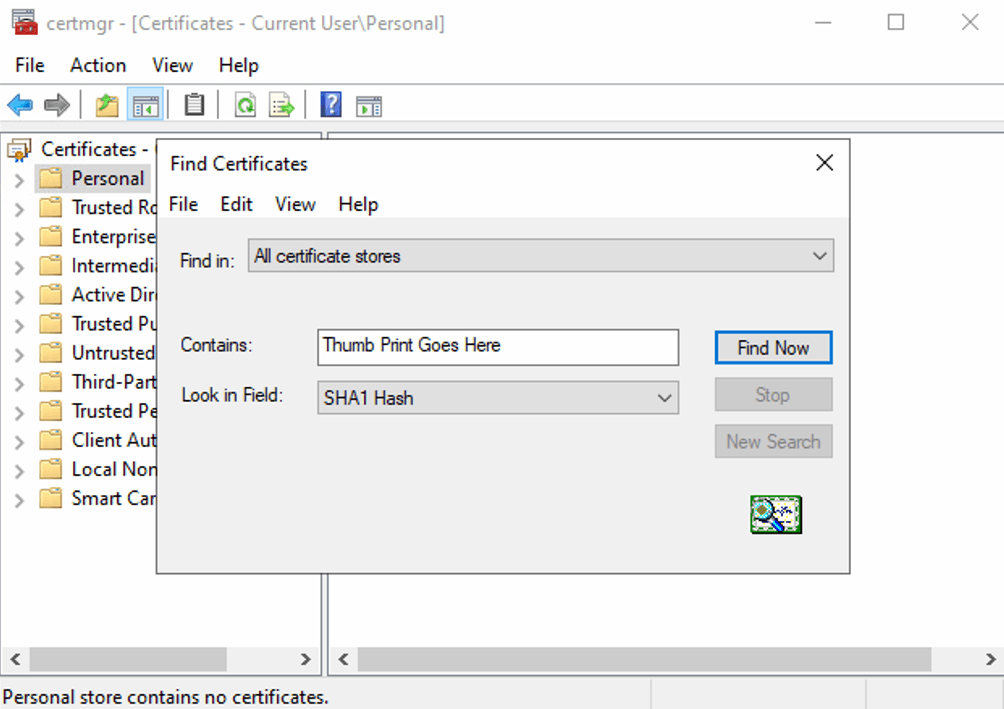
Once you've generated the certificate, you might want to export it for use in IIS or on other servers:
- Open certmgr.msc (Manage Certificates).
- Navigate to Personal > Certificates.
- Find the newly created certificate. If the certificate is not visible, right click on the Personal > Find Certificates paste the thumbprint into the "Contains:" input and change the "Look in Field" to SHA1 Hash, and search. The newly created cert should appear in the list.
- Right-click the certificate > Export.
- Export it as a .pfx file if you need the private key, or as a .cer file if just the public key is needed.
Bind the New Certificate in IIS
- Open IIS Manager.
- Go to the Bindings... section of your site.
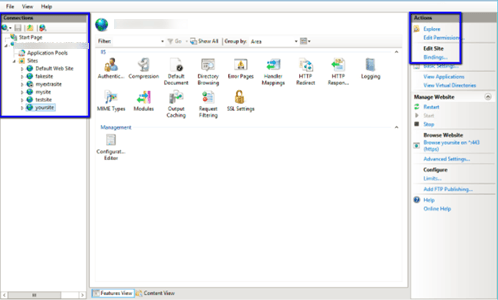
- Click Add or Edit the https binding.
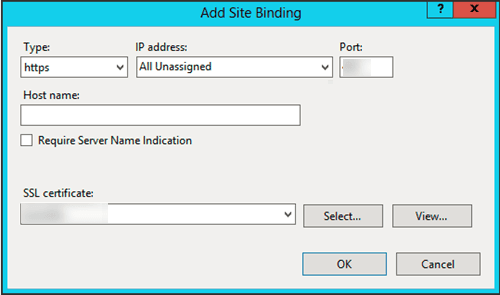
- In the SSL certificate dropdown, select the new certificate that includes the SANs.
- Click OK.
Verify SANs in the New Certificate
After installing the certificate, you can verify that the SANs were correctly added:
- Open the site in Chrome or another browser.
- Click the padlock icon in the URL bar and view the Certificate.
- Go to the Details tab, and under Subject Alternative Name, you should see all the domains you've listed.